








How to create surveys in Framer

Contents
Surveys are a great way to conduct market research and collect qualitative data from your users. This tutorial shows you how to do exactly that by using PostHog on your Framer website.
We'll show you to add PostHog to your Framer site and then create beautiful surveys in just a few clicks.
Adding PostHog to your Framer site
First, sign up to PostHog. Then, go to your project settings and copy your web snippet. It looks like this:
With the snippet copied, go to your Framer project settings by clicking the gear in the top right. If you haven’t already, sign up for the "Mini" site plan. This enables you to add custom code.
Go to the "General" tab in site settings and scroll down to the "Custom Code" section. Under "End of <head> tag", paste your PostHog snippet. Make sure to press "Save" next to custom code.
Finally, publish your site.
Create your survey
Create a survey in PostHog by going to the surveys tab and clicking "New survey." There are a variety of survey types to choose from, or you can create your own by clicking "Create blank survey".
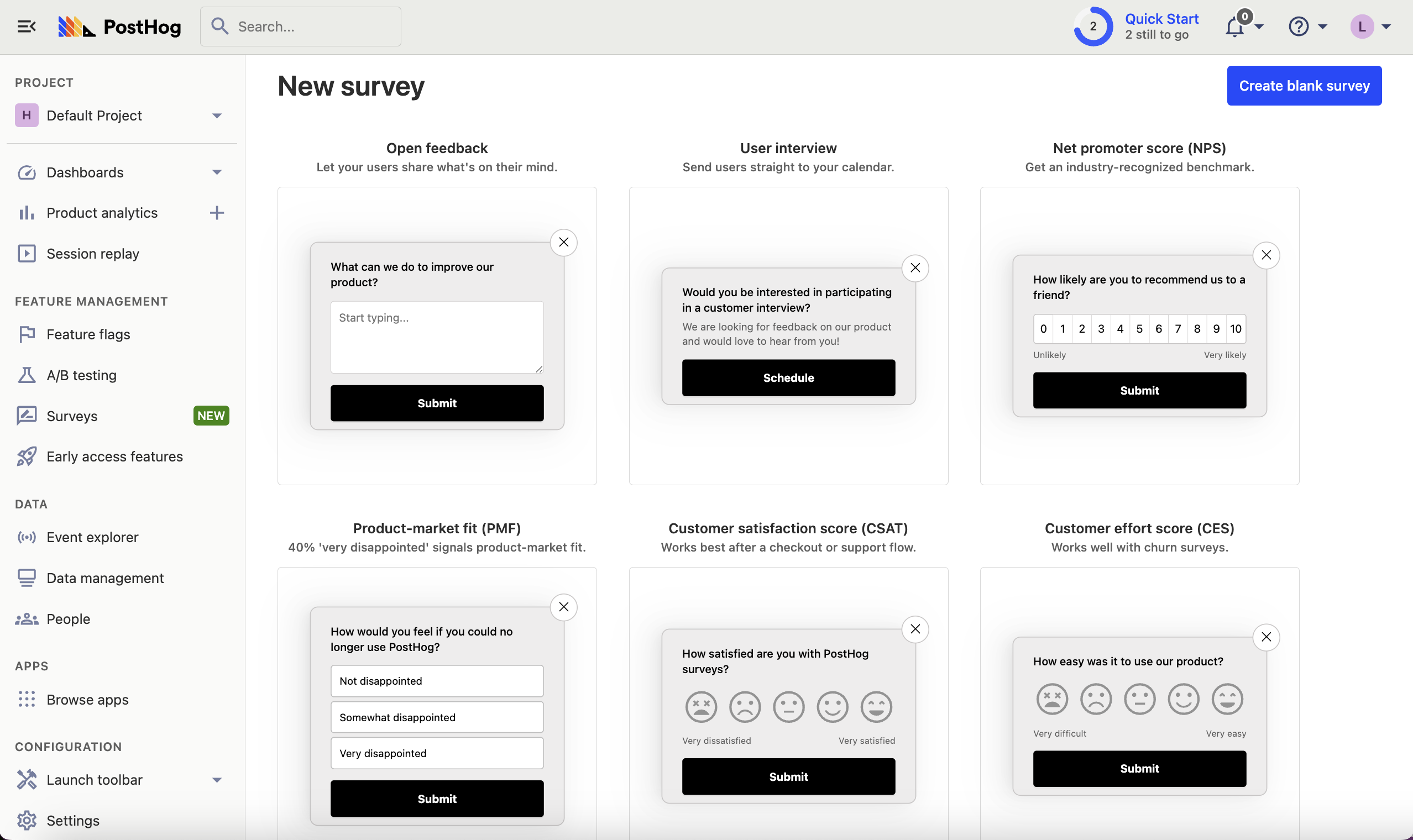
Next, customize your survey as needed. You can customize the questions, branding, and display conditions. See our survey docs for more details on how to do so.
Then, click "Save as draft" and then "Launch". Your survey is now live and you should see it on your website!
Viewing survey results
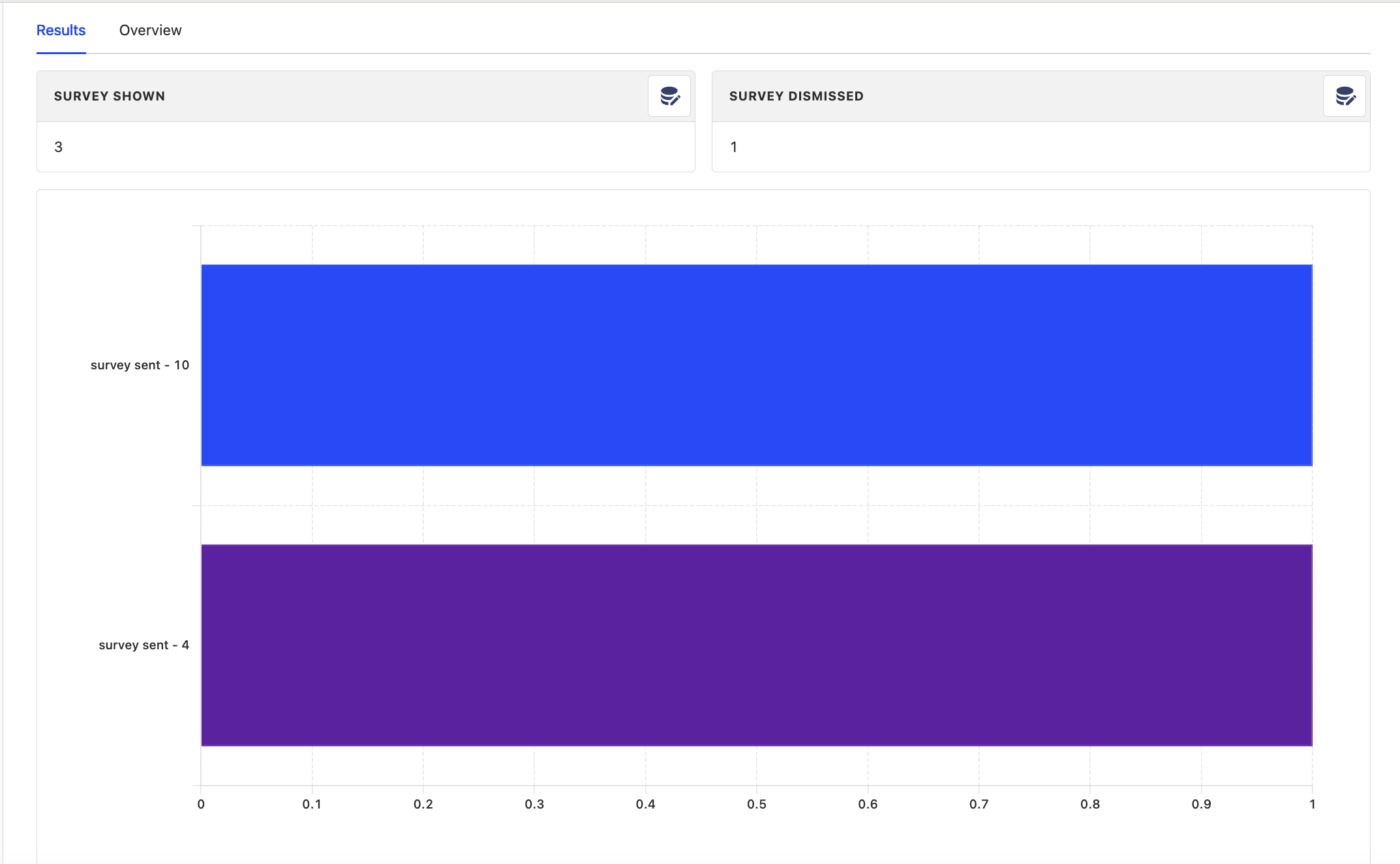
After interacting with your survey, you can view results by selecting the survey from the surveys tab. You'll see data on:
- How many users have seen the survey.
- How many users have dismissed the survey.
- Responses.
If you capture identified events, you can also filter these results based on person properties, cohorts, feature flags and more.
Further reading
- How to set up Framer analytics and session recordings
- How to run A/B tests in Framer
- How to analyze surveys with ChatGPT

Subscribe to our newsletter
Product for Engineers
Read by 100,000+ founders and builders
We'll share your email with Substack
PostHog is the leading platform for building self-driving products. With a full suite of developer tools – AI observability, product analytics, session replay, feature flags, experiments, error tracking, logs, and more – PostHog captures all the context agents need to diagnose problems, uncover opportunities, and ship fixes. A data warehouse and CDP tie it all together, unifying that context into one source agents can read across. You can steer it all from Slack, the web app, the desktop (PostHog Code), or your own editor via the MCP.